 UAE Dirham
 USD
USD


Customer Pain Point
A growing tech startup was facing network congestion, security risks, and complex IT management. Their outdated router lacked VLAN support, proper traffic management, and built-in security features. The IT team struggled with multiple standalone devices for routing, switching, and security, making network management inefficient.
ALFA TECH’s Solution
ALFA TECH deployed the Ubiquiti UDM-SE to provide an all-in-one solution with:
- 10G SFP+ uplink for high-speed fiber connectivity.
- 8-port PoE switch for powering UniFi APs, cameras, and VoIP phones.
- Built-in UniFi OS Console for centralized management of the entire network.
- Advanced firewall & threat detection with IDS/IPS for enhanced security.
- VLAN segmentation to separate office, guest, and IoT networks.
The UniFi Protect feature was also used to integrate security cameras, ensuring a secure and monitored workspace.
Customer Satisfaction
The startup experienced faster, more secure, and more reliable connectivity. The IT team now manages everything from a single dashboard, reducing troubleshooting time. The UDM-SE’s powerful processing and security features provided a future-proof solution, supporting company growth and scalability.
Installation & Configuration Details
-
Physical Installation
- Mounted the UDM-SE in a network rack with fiber uplink to the core switch.
- Connected PoE-powered UniFi APs and IP cameras directly to UDM-SE.
-
Network Configuration
- Created VLANs for office, guest, and IoT devices.
- Set up QoS to prioritize VoIP and business-critical applications.
- Enabled dual WAN failover for internet redundancy.
-
Security & Monitoring
- Configured Firewall Rules to block unauthorized access.
- Activated IPS/IDS for real-time threat detection.
- Integrated UniFi Protect for smart security monitoring.
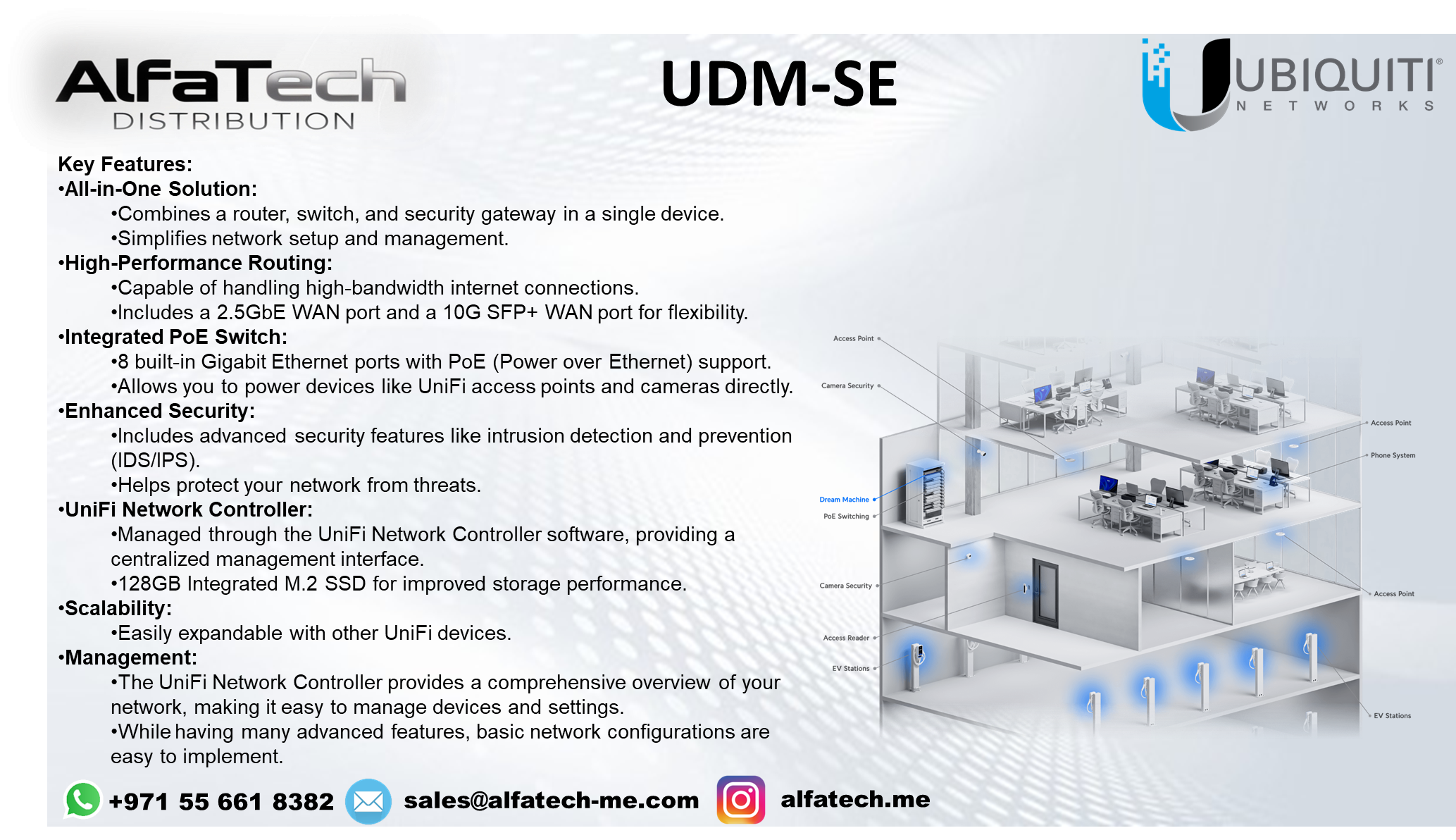
Everything in One Box: Instead of needing separate routers, switches, and security gateways, the UDM-SE combines all of those into one unit. This simplifies setup, reduces clutter, and makes managing your network much easier.
Fast Internet Speeds: It's built for high-speed internet. It has ports that can handle the fastest internet connections available, so you can stream, game, and work without worrying about bottlenecks.
Power for Your Devices: It has built-in ports that provide Power over Ethernet (PoE). This means you can directly power devices like security cameras or wireless access points without needing extra power adapters. It cleans up your setup and makes installation easier.
Strong Security: The UDM-SE has advanced security features to protect your network from threats. It can detect and prevent intrusions, keeping your data and devices safe.
Easy Management: You can manage everything through a user-friendly software interface called the UniFi Network Controller. It lets you see what's happening on your network, control devices, and configure settings with ease.
Room to Grow: As your needs grow, you can easily add more UniFi devices to your network, like additional access points or cameras. The UDM-SE can handle it.
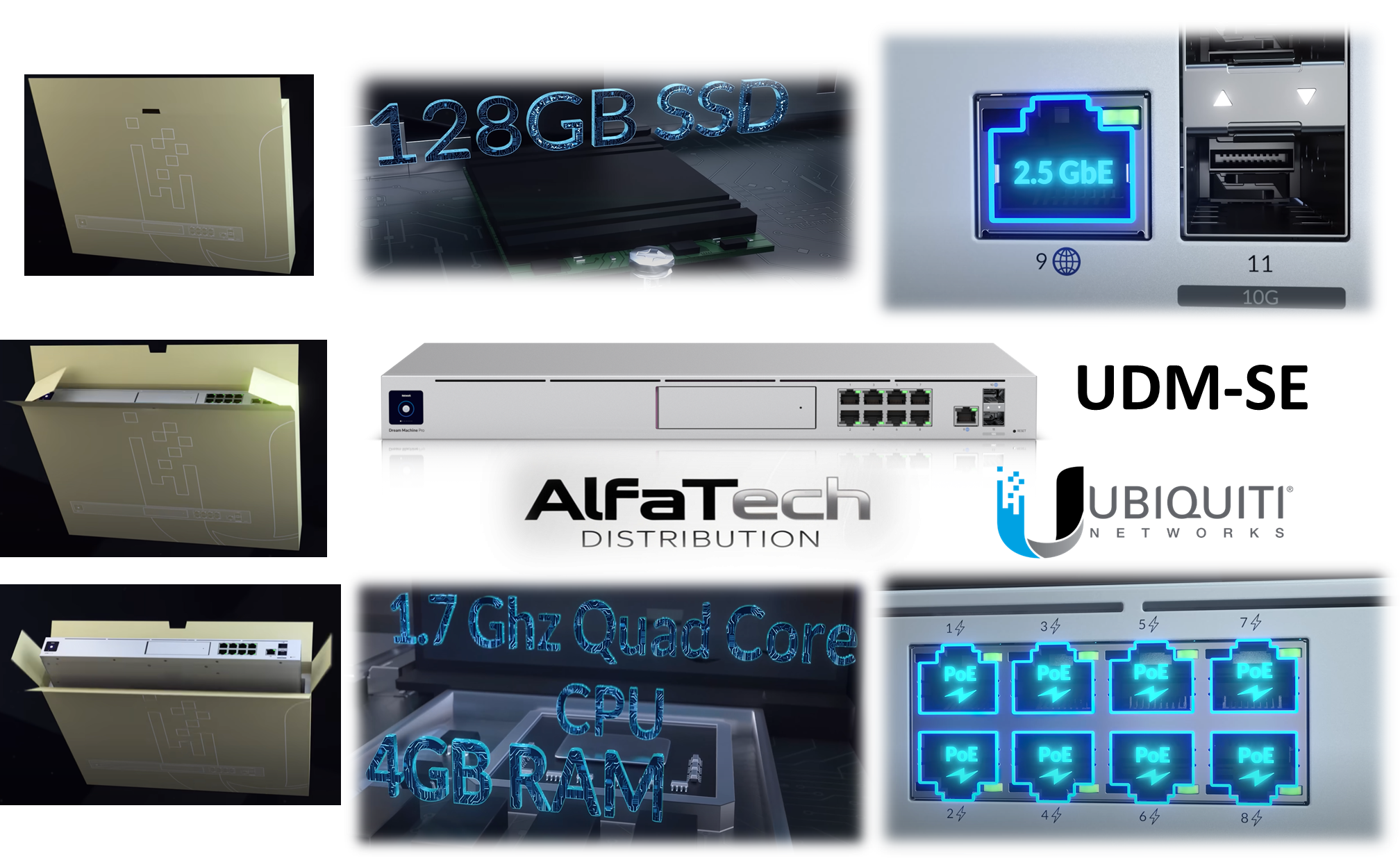
Integrated UniFi OS Console: The UDM-SE runs UniFi OS, allowing you to manage your entire UniFi network ecosystem from a single interface. This includes UniFi Network, Protect (for cameras), Access (for door access), and Talk (for VoIP).
High-Performance Routing and Security: It boasts a 1.7 GHz quad-core processor and 4GB of RAM, enabling it to handle demanding network traffic and security tasks.
Built-in Security Gateway: The UDM-SE acts as a robust firewall and intrusion prevention system, protecting your network from threats.
Integrated 8-Port Gigabit Switch with PoE+: It features 8 Gigabit Ethernet ports, all supporting PoE+ (Power over Ethernet Plus) to power devices like access points, cameras, and VoIP phones.
2.5 Gigabit Ethernet WAN Port: The UDM-SE includes a 2.5 GbE WAN port for faster internet connectivity, allowing you to take advantage of multi-gigabit internet plans.
10 Gigabit SFP+ Port: A 10 GbE SFP+ port is available for high-speed fiber uplinks or connections to other high-bandwidth devices.
128GB SSD Storage: Onboard SSD storage allows for local recording of UniFi Protect video footage and other data.
Rack-Mountable Design: The UDM-SE is designed to fit into a standard 1U rack, making it suitable for professional installations.
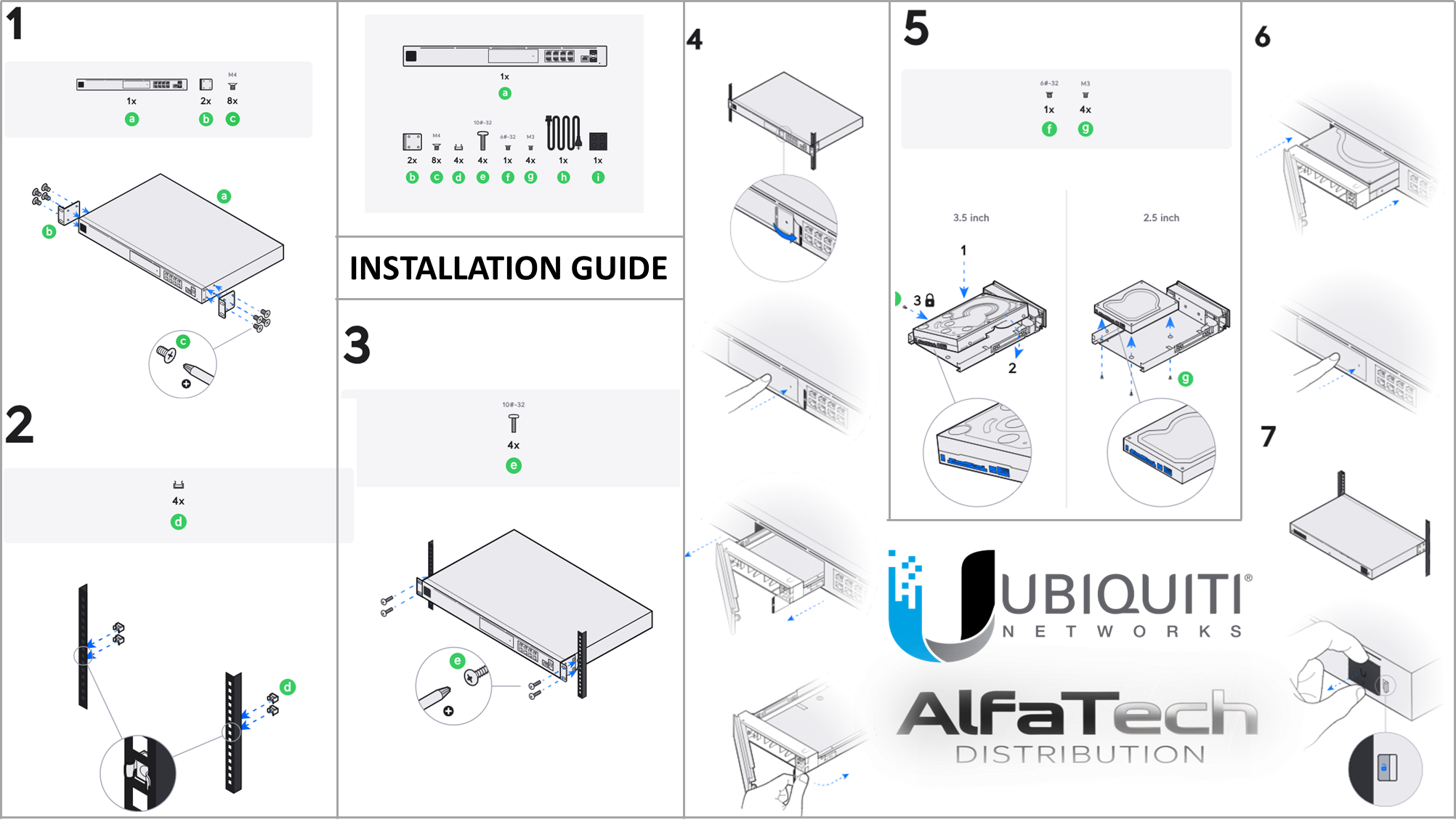
Front Panel Overview: This step likely highlights the ports and LEDs on the UDM-SE's front panel, helping users identify them.
Rack Ear Attachment: This step shows how to attach the rack ears to the UDM-SE, preparing it for rack mounting.
Rack Mounting: This step illustrates the process of mounting the UDM-SE into a server rack.
Drive Installation (General): This step shows the general process of inserting a drive into the drive bay, likely applicable to both 3.5-inch and 2.5-inch drives.
3.5-inch Drive Installation: This step focuses on installing a 3.5-inch drive, which is the primary storage option for the UDM-SE's UniFi Protect application.
2.5-inch Drive Installation: This step shows the installation of a 2.5-inch drive, potentially for other storage needs or if the UDM-SE supports it (though less common).
Cable Management (Implied): This step likely suggests how to properly connect cables to the device, ensuring a clean and organized installation.
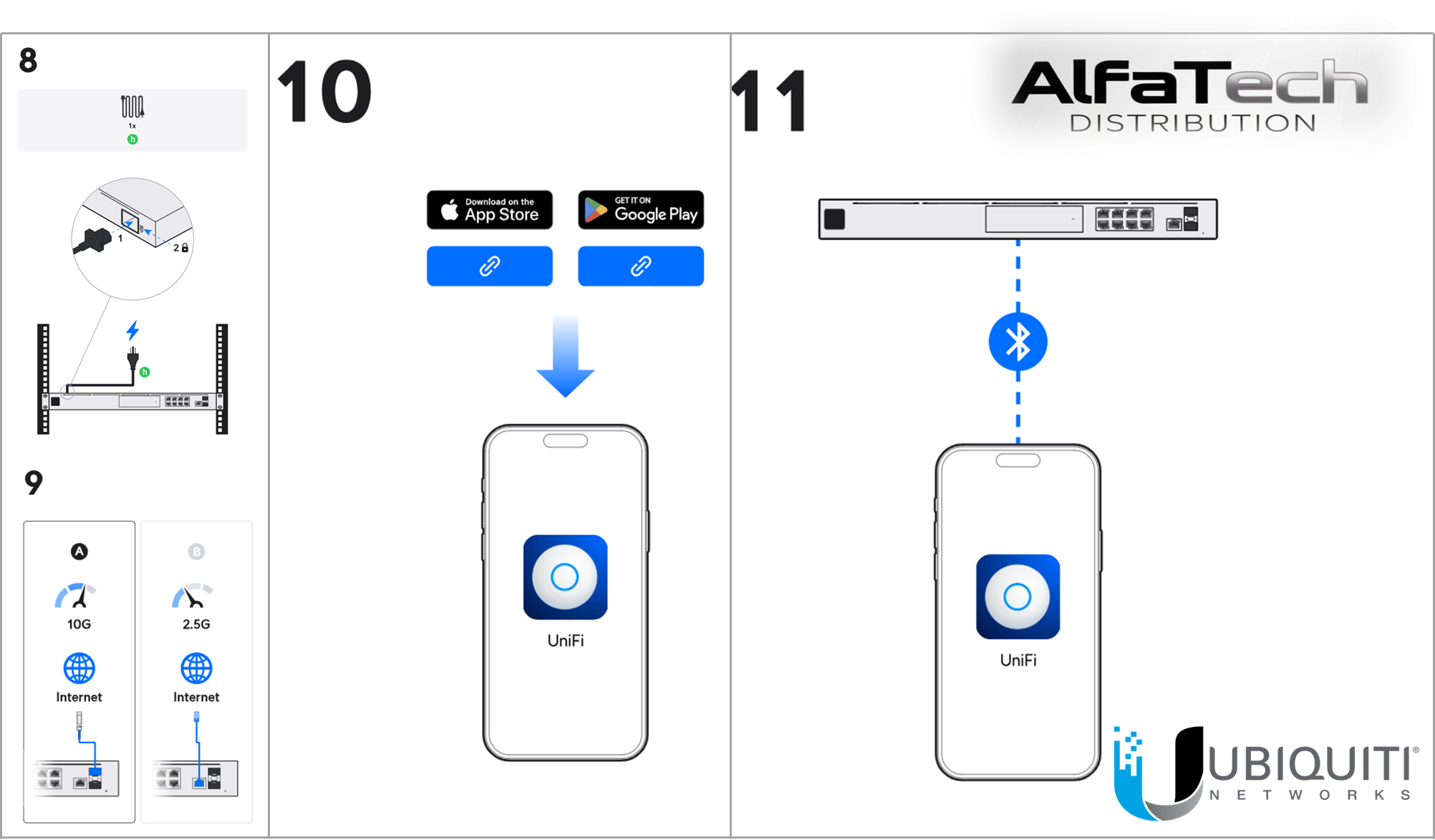
Step 8: Powering and Connecting the Device
Visual: This step shows the device being mounted in a rack (confirming it's a rack-mountable unit) and then connected to a power source. A network cable is also plugged into one of the Ethernet ports.
UDM-SE Relevance: This step is crucial for powering up the UDM-SE. The UDM-SE requires a power connection and a network connection to the internet or an existing network.
Key Takeaway: Step 8 signifies the completion of the physical installation and the start of the device's operational phase.
Step 9: Identifying Internet Ports
Visual: This step highlights two specific Ethernet ports on the device, labeled "10G Internet" and "2.5G Internet."
UDM-SE Relevance: The UDM-SE has both 10 Gigabit SFP+ and 2.5 Gigabit Ethernet ports for WAN (Wide Area Network/Internet) connectivity. This step helps users identify the correct ports for connecting their internet service.
Key Takeaway: Step 9 emphasizes the importance of connecting the internet service to the designated WAN ports for proper functionality.
Step 10: Downloading the UniFi Network Application
Visual: This step shows the Apple App Store and Google Play Store icons with links, directing users to download the UniFi Network application on their smartphones. An arrow points from the app store icons to a smartphone with the UniFi Network app icon.
UDM-SE Relevance: The UniFi Network application is essential for setting up and managing UniFi devices like the UDM-SE. It allows users to configure network settings, adopt devices, monitor network performance, and more.
Key Takeaway: Step 10 highlights the importance of downloading the UniFi Network app to proceed with the device's configuration.
Step 11: Bluetooth Setup and Adoption
Visual: This step shows a smartphone with the UniFi Network app and a Bluetooth icon connecting to the rack-mounted device.
UDM-SE Relevance: The UDM-SE supports Bluetooth for initial setup and adoption. This allows users to easily discover and configure the device using the UniFi Network app without needing a direct Ethernet connection to a computer for initial configuration.
Key Takeaway: Step 11 illustrates the ease of using Bluetooth for the initial setup process, simplifying the adoption of the UDM-SE into the UniFi Network.